
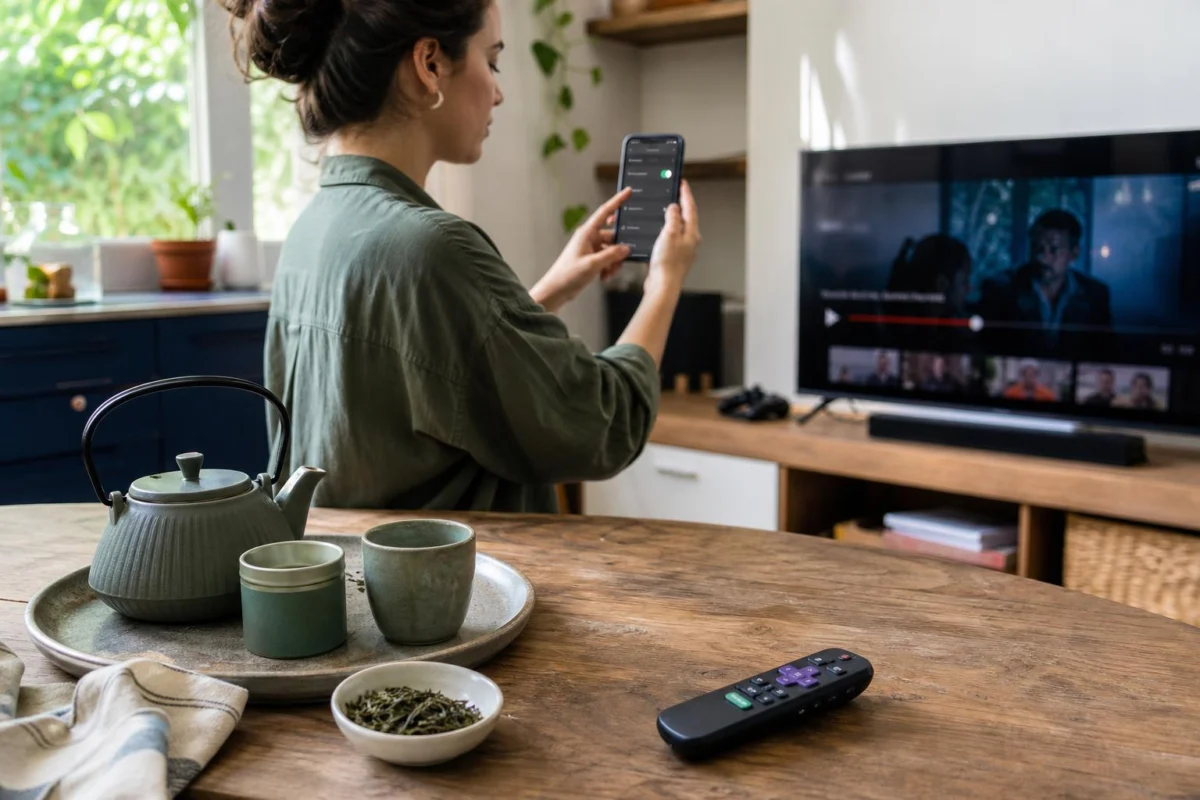
The remote can keep a viewing session moving long after the show has ended. It is in your hand, the credits shrink into a corner, and a countdown starts toward the next episode before you have made a decision. On a phone, the equivalent may be a thumb resting near the next clip as the feed loads it for you.
Turning off autoplay changes that handoff. Instead of asking yourself to catch the countdown every time, adjust the device that actually carries you from one video into another. The goal is simple: let the last item end on screen, then make starting the next one a fresh action.
Script the transition after the credits
- Name the screen that keeps going. Pick one place to start: the streaming box under the TV, the tablet on the couch, or the browser you use after dinner. Settings can differ between devices even under the same account.
- Play something ordinary and bring up its controls. Press the directional pad on the remote, tap the video, or move the cursor. Look in the player, episode list, profile, or playback menu for “autoplay,” “play next,” “continuous play,” or similar wording.
- Switch off the setting that starts another item. Be precise about the behavior you want to stop. “Next episode” is often separate from home-screen trailers or preview clips, so change the control tied to the unwanted continuation first.
- Test the final minute rather than trusting the menu. Use a short video or an episode already near its ending. Let it reach the credits and see whether the suggested title waits for you instead of beginning on its own.
- Give the remote a post-show location. Set it in its holder, on the TV console, or beside a lamp once the video is over. The next episode should require picking it up and pressing play, rather than one absentminded button press from the couch.
- Save an interesting suggestion for later. Add the title to a watchlist or write it on a note. You can keep the recommendation without treating the moment it appears as the moment it must be watched.
After one episode at the kitchen table
Dev eats a late snack while watching a comedy episode on the living-room TV. The streaming box remote is next to his bowl. Near the credits, a panel announces that episode six will begin in ten seconds. He notices that he usually presses nothing at all; the app simply takes over while he carries his plate to the sink.
Before another evening of watching, Dev opens an episode and uses the remote to reveal the playback bar. The first setting he finds concerns trailers, which is not the issue. In the profile’s playback section, he finds “autoplay next episode” and turns it off. He starts a short episode, skips close to the end, and waits through the credits.
This time episode six appears as a tile but remains unplayed. Dev adds it to his watchlist, puts the remote on the media shelf, and takes his bowl to the dishwasher. If he comes back and wants another episode, he can do that. The screen just no longer makes the decision while he is clearing the table.
Why stopping the handoff changes the whole session
Autoplay removes several tiny actions from the end of a video: finding a new title, deciding whether there is time for it, and pressing play. That convenience is useful for a planned series marathon or a music playlist, but it can also extend a casual viewing session by default. The next item begins while attention is already on the story, the snack, or whatever else is happening in the room.
With autoplay off, the recommendation can still be visible. What changes is its status. It becomes an option that stays put rather than an event that requires you to stop it. The pause at the final frame is enough to notice the clock, remember an errand, start bedtime, or decide that another episode sounds genuinely appealing.
Testing on the exact device matters because a television app, mobile app, web browser, and separate household profiles may not share every playback preference. A switch you changed on a laptop may have no effect on the streaming box connected to the TV. Watching one ending immediately after the change tells you which route the setting controls.
Some services split autoplay into more than one feature. A setting for previews may stop videos from playing as you browse, while episodes still chain together. Other services offer no reliable off switch for a vertical short-video feed. In that case, begin from a searched-for video, a creator’s page, a saved link, or a selected playlist. At the end, leave the feed by returning to the phone home screen, closing the tab, or backing out to search.
The remote placement is not meant to hide it or make television inconvenient. It marks the transition from watching to choosing again. A remote in your lap keeps the next action physically ready; one on the console asks for a brief, noticeable reach. That short interruption works alongside the setting, especially on nights when you are tired or distracted.
Saving a recommendation also handles a common reason for continuing: fear of losing a title that looked good. A watchlist, note, or saved link separates remembering it from watching it now. The list can hold the documentary, recipe video, or next episode until a time when you actively want it.
Questions about changing autoplay
Where should I look if the player has no autoplay control?
Check the service’s profile, account, or playback settings after looking in the player itself. On a TV, open the streaming app’s settings, not only the television’s main settings.
Why did autoplay stop on my laptop but not on the television?
Streaming services may store playback choices by app, device, profile, or sign-in. Change and test the setting directly on the television app or streaming device that continues episodes.
What can I do with a short-video app that never seems to end?
Start from a particular search result, saved creator page, or direct link when available. After that video, exit the app or return to search before another clip takes its place.
Should autoplay stay on for a planned viewing night?
It can be useful when everyone has agreed to a movie series, a long playlist, or several selected episodes. Turn it off where automatic continuation repeatedly exceeds your intended viewing.
Let the next episode wait for your button press
Find the autoplay control on the remote, phone, or browser that causes the overrun, then watch one ending to verify the result. Once the credits lead to a still suggestion instead of immediate playback, one video can remain one video unless you decide otherwise.